
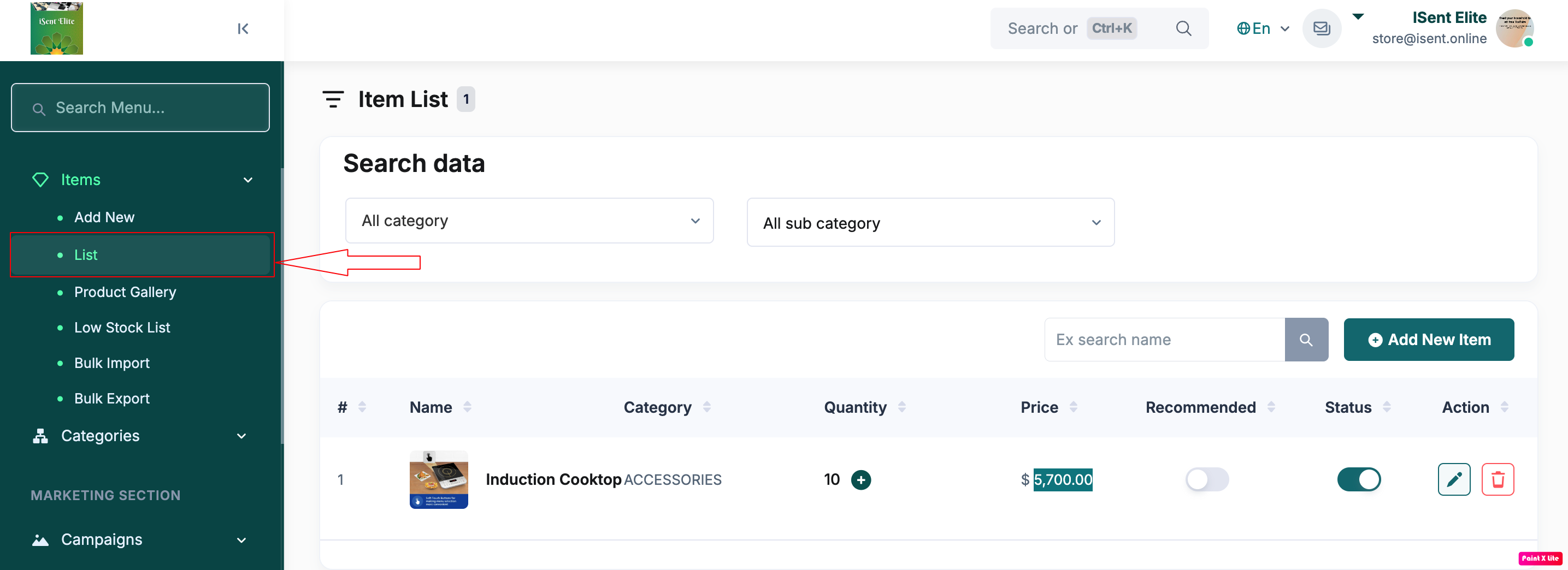
Step 1: Click Items in the left sidebar.
Step 2: Click List .
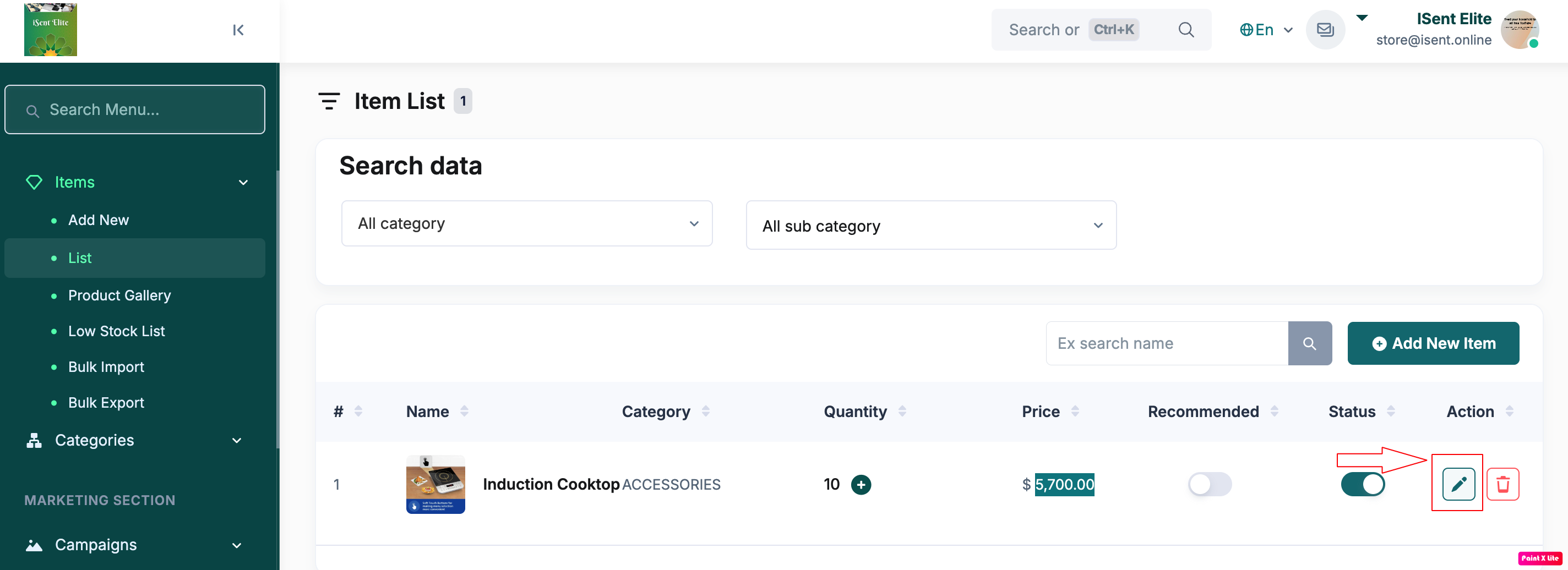
Step 3: Find the item you want to update and click the Edit (pencil) icon .
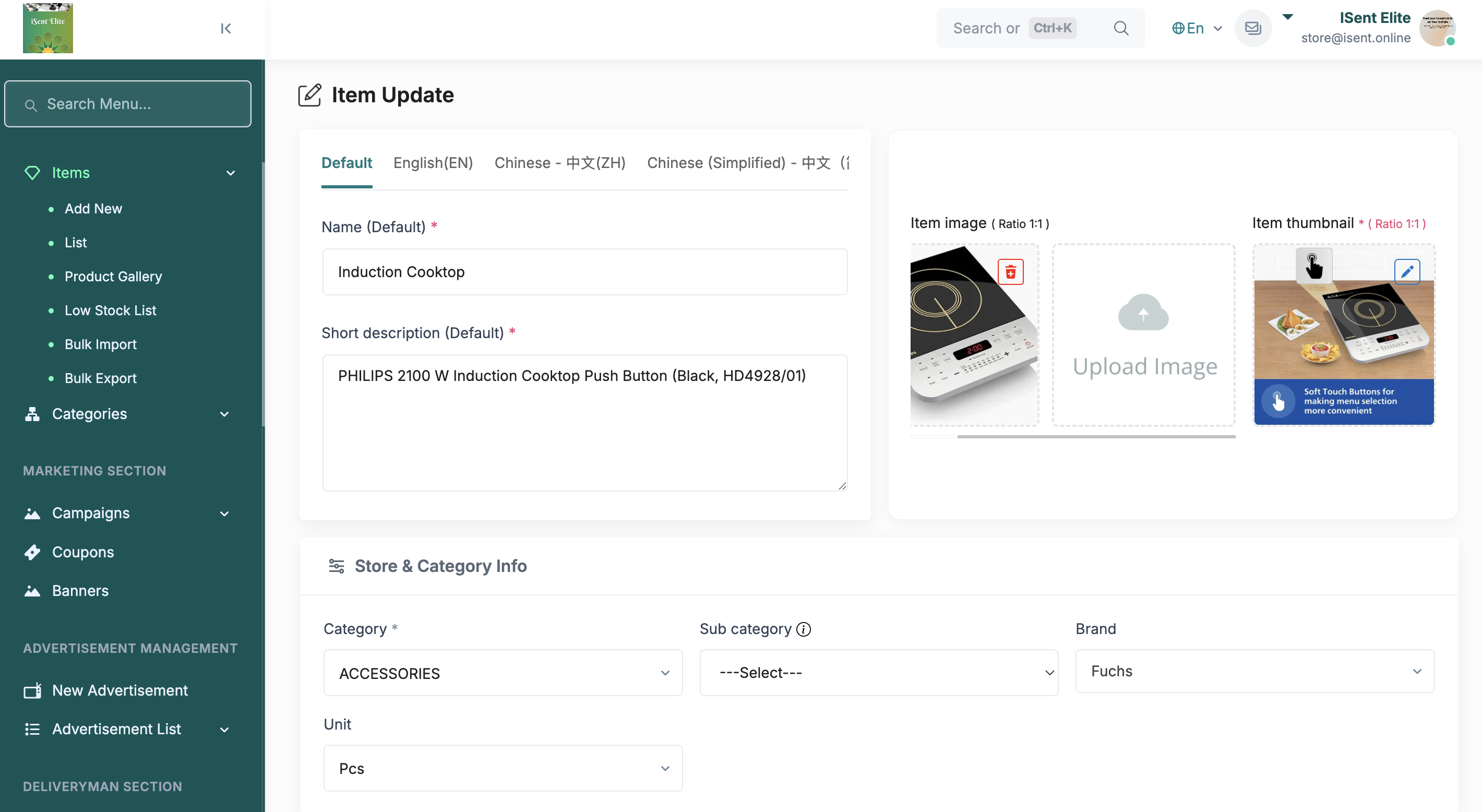
Step 4: On the Item Update page, update the item details (for example: Name and Short Description ).
- If needed, switch language tabs (Default / English ) and update the content for each language.
- Update images if required (Item Image / Item Thumbnail): click the image area to upload a new image, or remove the old one and upload again.
- In Store & Category Info , select or update Category , Sub Category , Brand , and Unit (as required).
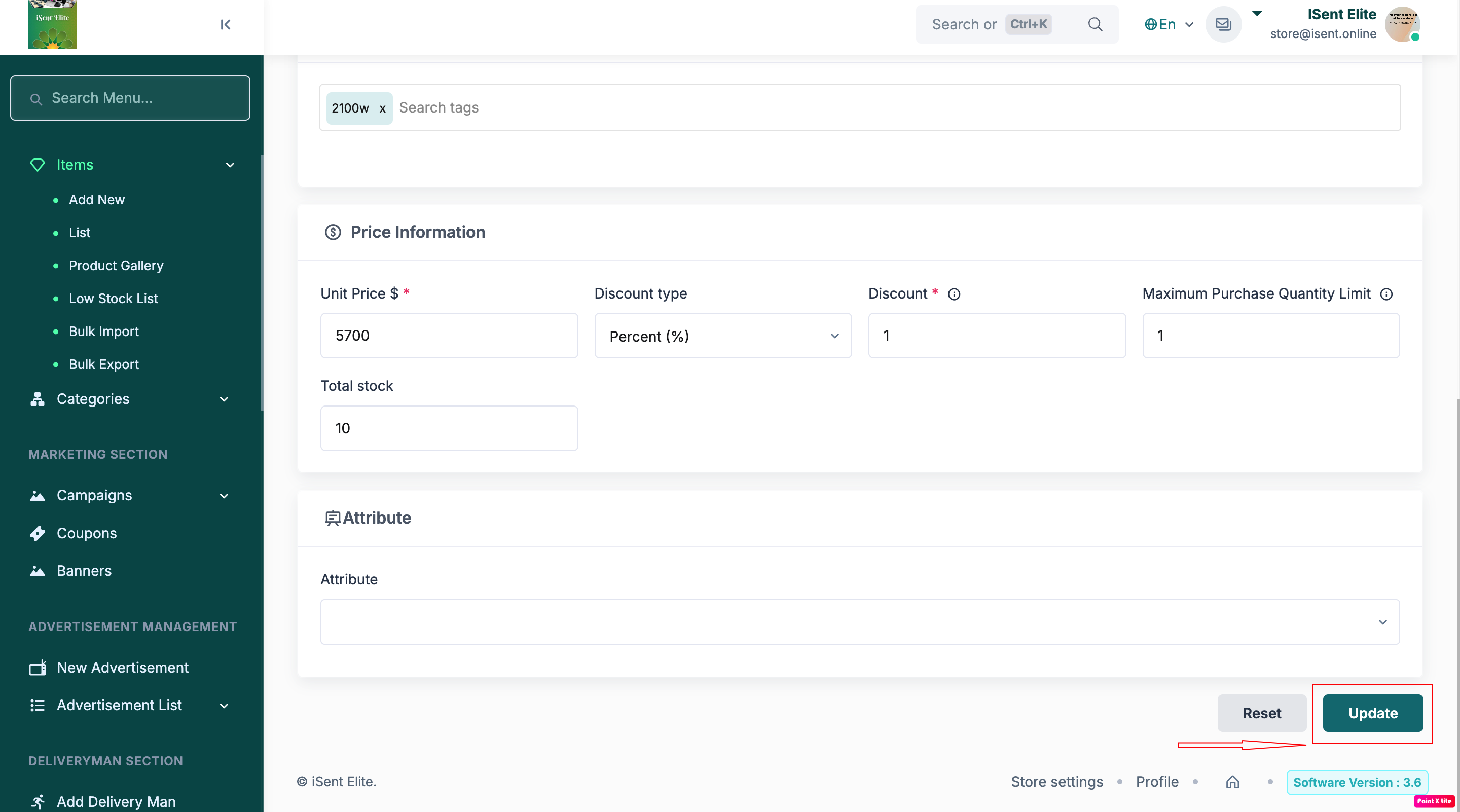
- Scroll down and update other required fields (such as price, stock, variation, tax, etc., if your panel has them).
- Click Update Submit (the button at the bottom of the page).
Step 5: Check the item in the list to confirm the changes were saved successfully.